
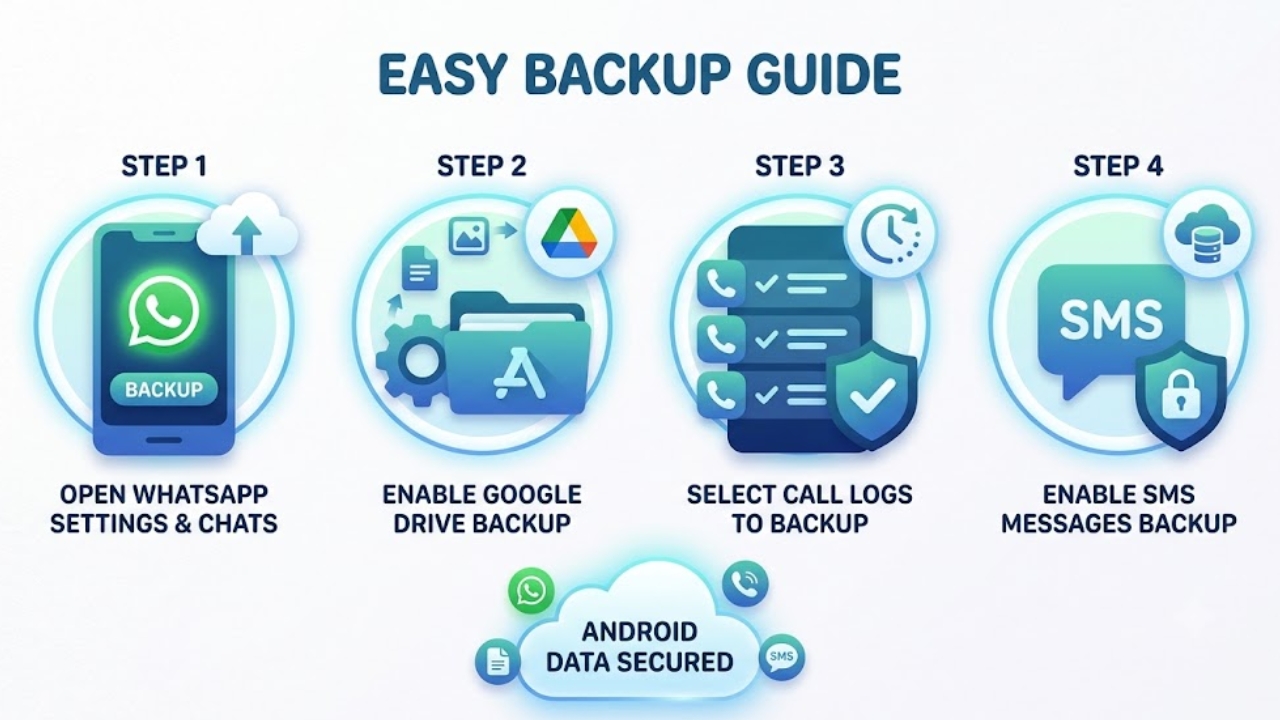
I know the sinking feeling all too well. You accidentally drop your phone onto the hard pavement, the screen cracks into a massive spiderweb, and your first thought is not about the hardware cost. It is immediately about your messages. Your phone holds your entire digital life right in your pocket. From precious photos of your family to critical work instructions sent over chat, and everyday call logs you rely on for business.
Losing all that data in a split second hurts. But you can skip that entire nightmare if you take ten minutes right now to backup WhatsApp and SMS Android files properly. Setting up these processes sounds like one of those boring tech chores you promise to do next weekend. I get it. We are all busy. But it genuinely takes just a few taps on your screen. Once you configure it, your phone handles the heavy lifting quietly in the background without you ever lifting a finger again. In this guide, I will show you the foolproof, step-by-step methods to secure your digital life. We will tackle Google’s cloud services, the massive 2026 storage policy changes you probably missed, and how to keep things completely offline for ultimate privacy.
Why You Must backup WhatsApp and SMS Android Data Today
People lose their digital data every single day without warning. If you have ever bought a new phone, logged in eagerly, and found your message inbox completely empty, you know exactly how frustrating that situation is. Hardware failure, accidental screen swipes, and bad software updates happen way more often than we like to admit. When you configure your phone to properly backup WhatsApp and SMS Android systems, you build an invisible safety net.
You guarantee your conversations, photos, and voice notes travel with you, no matter what happens to the physical chunk of metal and glass in your hand. Knowing your data sits safely in the cloud or on a hard drive completely changes how you interact with your phone on a daily basis. You stop stressing when your toddler grabs it to watch a video, and you do not panic if it slips out of your pocket. Getting this done today is a one-time setup that saves you a massive headache tomorrow.
| Data Loss Trigger | How It Happens | How a Backup Saves You |
| Theft or Loss | Your phone gets stolen or left behind at a coffee shop table. | Cloud storage lets you pull your exact data onto a brand-new device in minutes. |
| Accidental Deletion | You swipe the wrong way and clear a massive group chat. | You simply reinstall the app and load yesterday’s file to get everything back. |
| Software Corruption | A botched operating system update completely freezes the phone. | Your messages live safely on Google servers, untouched by your phone’s buggy software. |
| Hardware Failure | The battery dies permanently or you drop the device in a lake. | Cloud backups remain totally accessible even if the original phone is utterly destroyed. |
The New 2026 Google Storage Limits You Need to Know
If you have not looked at your backup settings in a while, prepare for a massive wake-up call. For years, Android users got a remarkably sweet deal where WhatsApp backups did not count against their Google Drive storage limit. That free ride is officially over. As of 2024 and cementing firmly into 2026, Google now counts all WhatsApp backups directly against your 15GB free Google Drive storage quota. If your group chats constantly ping you with high-resolution photos and heavy videos, your Drive space will vanish incredibly fast.
On top of that, Google announced further policy updates taking effect in September 2026. Soon, even more granular Android backup data like your SMS messages, call history, and device settings will count against your total cloud allocation. Meta also introduced a ruthless data retention rule. If you do not update your WhatsApp backup for five months, they automatically and permanently delete it from their servers. Meanwhile, Meta is developing its own cloud backup service that might offer 2GB of free storage to help offset Google’s strict limits.
| Storage Policy | The Old Rules (Pre-2024) | The Current Reality (2026) |
| Storage Quota | WhatsApp chats completely bypassed the 15GB limit. | Backups fully consume your shared Google Account storage space. |
| Data Retention | Indefinite storage as long as your account stayed active. | Backups untouched for 5 months get permanently trashed. |
| Android Backup Data | Only photos and MMS counted against the quota. | SMS, call history, and settings count starting September 2026. |
| Media Handling | Unlimited video backup at zero cost to your quota. | Videos aggressively drain your quota. Turn them off to save space. |
How to Configure Google One to Sync Your Chats
Using your Google Account is the absolute easiest way to handle your data. Your phone already connects to Google for downloading apps and checking email, so tying your chat history to that same account makes perfect sense. Let’s walk through how to properly backup WhatsApp and SMS Android devices using the cloud right now. First, open WhatsApp and tap the three-dot menu in the top right corner. Hit Settings, then tap Chats, and scroll down to Chat backup. Tap the option to back up to your Google Account and pick a daily frequency. I suggest leaving the “Include videos” toggle turned off because videos will devour your storage limit instantly.
Tap the green button to force a save right away while you are connected to a strong Wi-Fi signal. Next, we need to secure your standard text messages and call logs. Android handles this natively through Google One. Open your phone’s main Settings app, scroll down to Google, and select the backup option. Turn it on and make sure both SMS messages and call history are checked. Tap the sync button to force an immediate save to your cloud account.
| Feature Breakdown | WhatsApp Google Drive | Android Google One |
| Data Saved | WhatsApp chats, photos, voice notes, custom stickers. | SMS, MMS, call logs, app data, network device settings. |
| Automation Options | Pick daily, weekly, or monthly automatic schedules. | Runs automatically when idle, locked, and charging. |
| Network Priority | Choose Wi-Fi only or cellular data uploads. | Runs primarily on Wi-Fi to strictly preserve your cellular data. |
| Storage Impact | Eats directly into your free 15GB Drive limit. | Eats directly into your free 15GB Drive limit alongside photos. |
Ditching the Cloud for Direct Android Data Transfers
Sometimes your Google Drive is just entirely full, and you just bought a shiny new phone. You probably do not want to pull out your credit card and buy more cloud storage just to move your messages one time. Thankfully, newer Android operating systems let you skip the cloud entirely and move your data directly between devices. I love this method because it is incredibly fast, highly secure, and uses zero internet data. Keep both phones turned on and connected to the exact same Wi-Fi network.
On your old phone, jump into the WhatsApp settings and select the transfer chats option. A QR code scanner opens up immediately on your screen. When you install WhatsApp on the new phone and verify your phone number, it asks if you want to transfer history from an old phone. Scan the QR code on the new phone with your old phone. The data beams directly between the devices securely. For standard SMS and call logs, just use the built-in transfer prompt with a USB-C cable when you power on the new Android phone for the very first time.
| Transfer Method | Cloud Backup (Google Drive) | Direct Local Transfer |
| Transfer Speed | Slow, depending heavily on your home internet speed. | Lightning-fast via direct Wi-Fi or physical USB-C cable. |
| Storage Need | Requires adequate free space currently in Google Drive. | Zero impact on your cloud storage limit whatsoever. |
| Device Status | Perfect if the old phone is lost, stolen, or completely broken. | Both phones must be physically working and physically in your hands. |
| Best Scenario | Emergency disaster recovery when hardware unexpectedly fails. | Buying a new phone and migrating everything instantly on the couch. |
Top Apps to Handle Your Data Offline
I completely hear you if you hate relying on the cloud for your personal privacy. A lot of people want absolute control over their private conversations. If you prefer to backup WhatsApp and SMS Android files offline, using local storage and third-party apps is the smartest route available. This strategy guarantees your data never sits on a remote server waiting for a potential breach. To pull your text messages completely offline, grab an app called SMS Backup & Restore from the Google Play Store.
It completely ignores Google and packages your standard texts and phone calls into a neat, easily readable XML file. You simply pick your phone’s internal hard drive as the save location and set it to run on a weekly schedule. For WhatsApp, the app actually creates an automatic local save every single night at 2:00 AM on your internal storage. You can open your file manager app, navigate to the WhatsApp database folder, and copy that raw encrypted file straight to your laptop for safekeeping.
| Offline Tool | Main Function | Cost | Biggest Benefit |
| SMS Backup & Restore | Saves SMS, MMS, and call logs to an XML file. | Free (Ad-supported) | Gives you a tangible file you completely own and control. |
| WhatsApp Local File | Built-in WhatsApp feature for daily local hard drive storage. | Free | Runs quietly every night at 2:00 AM without needing internet. |
| TouchCopy Software | Exports chats directly to a computer via a physical cable. | Paid | Saves chats as clean PDFs to read easily on a laptop screen. |
| Text Exporter | WhatsApp’s built-in single chat text exporter tool. | Free | Creates a quick plain text file of one specific conversation thread. |
Locking Down Privacy With End-to-End Encrypted Backups
Privacy matters more today than ever before in digital history. Standard WhatsApp backups on Google Drive are incredibly secure, but they are not end-to-end encrypted by default out of the box. This means if law enforcement served a legal warrant, or a massive server breach happened, third parties could technically access that file. To lock down your privacy tightly, you must toggle on End-to-End Encrypted Backups manually inside the settings menu. Hit the turn on button and the app will ask you to create a personalized password or generate a massive 64-digit encryption key.
Write this key down on a physical piece of paper and stash it safely in a desk drawer. Listen to me carefully here: If you forget this password, absolutely nobody can help you recover your chats later. Not WhatsApp, not Meta, and definitely not Google. You will permanently lose access to the backup. I cannot stress that enough. If you value security above all else, this feature is an absolute requirement.
| Encryption State | Who Can Access the File? | What Happens if You Lose the Password? |
| Standard Backup | You, Google, and potentially Meta engineers. | You easily restore it by just logging into your standard Google Account. |
| Encrypted Backup | ONLY YOU hold the physical keys to the data. | You permanently lose all access to those backed-up messages forever. |
| Local Offline File | Anyone who physically steals your unlocked phone. | You just generate a new one the very next night automatically. |
| XML Export File | Anyone who accesses the raw file on your hard drive. | You can open the file anytime on a computer without a password lock. |
Bringing It Back: How to Restore Your Messages
Creating the backup is only half the digital battle. The real magic happens when you set up a fresh phone and watch your old messages effortlessly populate the screen in real-time. To restore WhatsApp successfully from Google Drive, you absolutely must use the exact same phone number and Google Account used to create the original file. Install the app on the new phone, enter your phone number, and verify it with the quick text code. The app instantly scans your Google Drive. When it finds the file, tap the restore button immediately. Do not skip this prompt. If you hit skip, you have to completely uninstall the app to try again. Wait for the progress bar to finish.
Your text messages appear first, while heavy photos download quietly in the background as you start texting your friends. For your native text messages and call logs, simply sign into your Google account during the initial Android startup screen. It will specifically ask if you want to pull data from a previous sync. Pick your old phone from the list, make sure messages are checked, and let the operating system do its thing.
| Backup Method | Requirements for a Successful Restore | Your First Step |
| WhatsApp (Cloud) | Same Google Account, exact same verified phone number. | Install WhatsApp freshly and verify the phone number immediately. |
| WhatsApp (Local) | Raw file placed correctly in the new phone’s Databases folder. | Install WhatsApp freshly and verify the phone number immediately. |
| SMS / Call Logs | Same Google Account logged into the device. | Sign into Google during the initial phone startup wizard process. |
| Offline XML File | The XML file must physically sit on the new phone’s hard drive. | Open the app, tap the restore button, and point it to the XML file. |
Fixing Common Backup Glitches Quickly
Technology rarely works flawlessly every time you press a bright green button. Recently, a ton of Android users reported annoying bugs where their uploads stall or vanish completely due to server interface changes. If you hit a wall, do not panic at all. You can fix most of these frustrating issues in seconds. If your upload hangs at ninety-nine percent, a massive video file or a weak network is likely causing a severe timeout. Jump into your system settings, force stop WhatsApp entirely, clear the app cache, and restart the process over a strong home Wi-Fi connection. If you get a terrifying insufficient storage error, check your Google Drive quota immediately.
Delete old emails with huge attachments. Remember, your chat data shares one single pool of space with Gmail and your high-resolution photos. Sometimes, a file gets interrupted by an app crash, corrupting the data packet entirely. If this happens, WhatsApp cannot read it later. Your best bet is to delete the corrupted chunk directly from your cloud storage settings and run a fresh manual sync from your old phone.
| The Glitch | The Likely Culprit Behind the Issue | The Quick and Easy Fix |
| Stuck at 99% | Network timeout or a massive media file causing a jam. | Force stop WhatsApp, clear the cache, and use strong home Wi-Fi. |
| Not Enough Storage | Google Drive storage quota is completely full. | Delete old chat videos or clear out your Gmail trash folder immediately. |
| File Not Found | Logged into the completely wrong Google account email. | Double-check that your phone number and email match the old device exactly. |
| Missing Photos | The video switch was left turned off during the upload. | Run a fresh save on the old phone with the media switch toggled strictly on. |
Final Thoughts
Losing your digital footprint is one hundred percent preventable if you take action. Taking strict control of your data today means you never have to feel that intense stomach-drop panic when your hardware fails or software crashes unexpectedly. By leaning on Google Drive for automated security, understanding the new restrictive cloud storage limits, and utilizing offline tools to backup WhatsApp and SMS Android systems, you build an absolute fortress around your data.
Check your storage limits regularly so you do not hit a sudden wall. Turn on end-to-end encryption if keeping things strictly private is your absolute top priority. Make sure your daily syncs actually hit complete status before you walk away. Once you set up these reliable systems, you can confidently reset your phone, buy brand-new hardware, and live your life without worrying about losing the conversations that mean the absolute most to you.
Frequently Asked Questions (FAQs) About Backup WhatsApp and SMS Android
Can I see my deleted WhatsApp call history without a backup?
No. Unless you use specialized, paid forensic software that scans deep local storage, deleted call logs are gone permanently without a backup.
Do WhatsApp backups consume my Google Drive 15GB free storage?
Yes. Google officially ended the free storage exemption. Every photo, message, and video backed up through WhatsApp directly eats into your Google Account quota.
What happens if I don’t update my WhatsApp backup for a few months?
Google’s current policy dictates that any WhatsApp backup untouched for five months might be automatically deleted from their servers to free up space. You need to sync regularly.
Can I transfer my Android backup to an iPhone?
You cannot restore a Google Drive backup directly to an iPhone from the cloud. However, you can use Apple’s official “Move to iOS” app during the initial iPhone setup to migrate WhatsApp data directly over a local Wi-Fi connection.
Does Android’s native backup save MMS (picture messages) in standard texting apps?
Yes, Google One backups currently include MMS (photos and videos sent via traditional text message), and they do consume your Google account storage.
Can I merge two different WhatsApp backups?
No. Each new backup file overwrites the previous one tied to that Google Account. You cannot seamlessly merge a backup from your old phone with the new messages on your current phone.